|
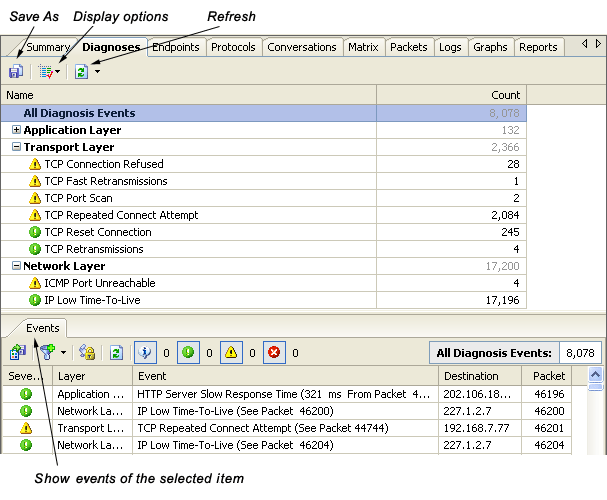
The Diagnoses view presents the diagnosis events of global network or selected network node. You can find a diagnosis statistics according to network layers from the upper view, whereas the corresponding events are listed in the lower subview, each event is assigned a severity level. By double clicking on an event, Colasoft Capsa will open an Event Relative Packets window showing the related packet information to this event. To get a detailed description and remedy suggestion, push the References tab in the lower subview (if applicable).
The diagnosis settings can be customized in the Project Settings - Diagnosis page by clicking the
The Diagnoses view labels events with the following severity level icons:
Click on the + (plus) or - (minus) signs at the left margin to expand or collapse individual items of the display. In addition to the
common context commands as other tab views, this view also has the following special commands:
|
|||||||||||||||||||||||||||||||||||
 button from the toolbar.