|
In the setting page, you can define the email log's buffer size, select log file format, enable Colasoft Capsa to save email contends and set conditions for the display of email logs. The settings or modifications made in this page will impact the results displayed in the Logs - Email Messages view. See the figures below as setting examples.

By default, the email log is enabled and the log buffer size is preset as 1024 KB. If you disable the email log, you can not see any email log information from the Logs - Email Messages
view. The log buffer size is customizable; when the email log buffer is
full, Colasoft Capsa will discard the oldest email logs and append the
new ones to it.
- Conditions
Check this option and then you can define
one or more conditions for logging, blank conditions will be ignored
by system, system will log all items if there is no condition
defined; the logical relationship between conditions is "AND" if
there are more than one condition defined.
- Exceptions
Define the logging conditions of being
excluded by system, the logical relationship between exceptions
is "AND" if there are more than one exception defined.
- Save Email Contents
To view the real contents of a logged email, you must enable Colasoft Capsa to save email contents and designate a location in advance. When this option is disabled (by default), you can only see email log information in the Logs - Email Messages view and can not open the email.
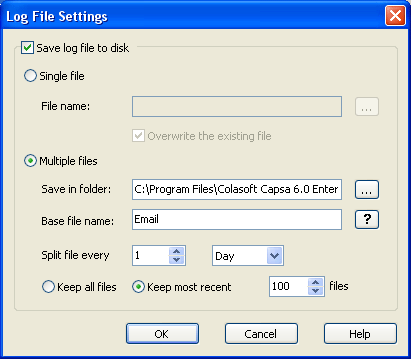
By clicking the browse button  and check "Save log file to disk", you can select to save all captured email logs to a single file or multiple files which are split by time or size. and check "Save log file to disk", you can select to save all captured email logs to a single file or multiple files which are split by time or size.
-
Single file
All packets are saved to a same file.
- File name
Specifies a name for the packet file. Click the
button on the right to open a dialog for defining a save path for
the packet file.
-
Multiple files
Packets are saved to the files split by time or size. To reduce the total size, you may choose to only keep the most recent files.
- Save in folder
Specifies a folder name and the save path for all files. Click the
button on the right to open a dialog for defining a save path for
the folder.
- Base file name
The portion of a file name to the left of the period separator.
Colasoft Capsa allows very long file names. Click the
 button to view a example of the base file name.
- Split file every
Chooses a rule for splitting the file if the file size is too big.
You can split files by time or file size - months, days, hours,
minutes, KB, MB.
- Keep all files
Saves all split files in the defined save path.
- Keep most recent
Specifies the number of most recent files for saving.
|