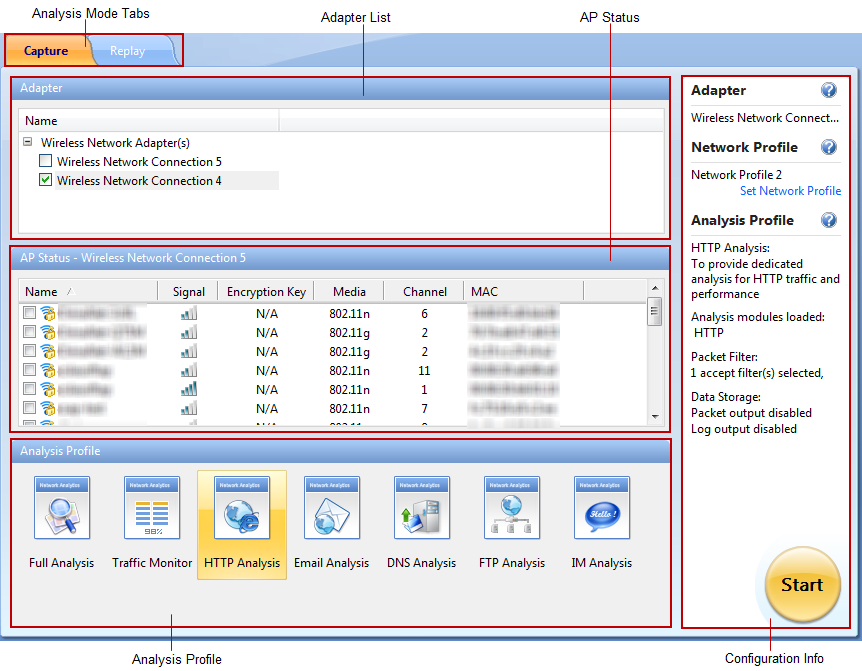
The Start Page is the first screen you see when starting the program, which guides you to start an analysis project step by step and appears as below.
The Start Page includes following parts.
Once a wireless network adapter is selected, all detected APs are listed on the AP Status section immediately with AP name, signal intensity, encryption keys, media type, AP channel, and MAC address.
To refresh the AP list, right-click and choose Refresh.
To edit the properties of an AP, double-click the AP or right-click the AP and choose Properties to open a Wireless Network Properties dialog box, which is used to configure the settings of an AP, including alias and encryption keys. You can give the AP an alias to be easily identified. Capsa can identify the encryption type and you should just enter the encryption keys. The program can memory the settings of an AP. If it is not the first time you select an AP, you would just select the AP without enter the keys.
To manage the APs that have been used, right-click and choose Wireless Network Manager to open the Wireless Network Manager window in which, you can find a history list for all the wireless APs that have been monitored. You can change their encryption keys and delete the old entries.
You can click  on the right side to get related tips and introductions.
| Back |