 on the Report view to pop-up the New Report dialog box which appears as below.
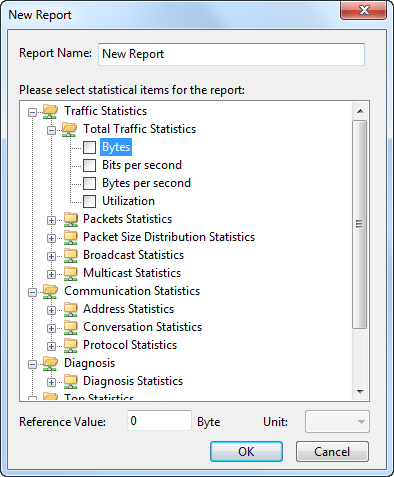
Besides the default Global Report, you can create new reports according to the need.
To create a report, follow the steps below:
on the Report view to pop-up the New Report dialog box which appears as below.

 on the toolbar of the Report view to set the name of the company, the prefix of the report name, the creator of the report, the logo of the company, whether or not to show the created time (See Report Settings for more details).
| Back |