Analysis
The Analysis tab appears as follows:

When the Replay analysis mode is selected, the Wireless Analysis part will be Replay as follows:
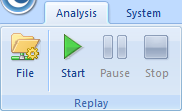
The Analysis tab includes the following sections:
- Wireless Analysis:
- Adapter: Click to open the Select Wireless Network dialog box to view the properties of selected APs.
- Filter: Sets packet filters (See Creating Filters for details).
- Start: Starts capturing packets.
- Stop: Stops capturing packets.
- Replay:
- File: Opens the Packet File Management dialog box which is just the same as the Packet Files section on the Start Page.
- Filter: Sets packet filters (See Creating Filters for details).
- Start: Starts the replay.
- Pause: Pauses the replay.
- Stop: Stops the replay.
- Network Profile: Sets the parameters for network profile. (Read Network Profile for more details).
- Analysis Profile: Sets the parameters for analysis profile (Read Analysis Profile for more details).
- Gauge:
- Utilization (%): Shows network bandwidth utilization in gauge.
- pps: Shows the number of captured packets in gauge.
- Traffic Chart (bps): Shows the traffic of chosen adapter with refreshing every second. Move your mouse over the chart and you will see the traffic number and specific time.
- Packet Buffer:
- Buffer Map: Shows how much buffer for the analysis project was used with total buffer size below the Buffer Map (See Packet Buffer to know how to set buffer size).
- Export: Saves the packets in packet buffer in a format selected from the Save as type drop-down list box.
- Clear: Clears the data in the packet buffer.
- Lock: Stops storing packets in the buffer.
 The program still captures packets upon locking the packet buffer.