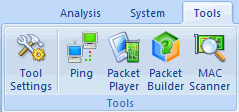
In addition to the four tools referred previous, users can customize to add other Windows applications and tools into Colasoft Capsa with the External Tools Management. You cannot only invoke but also execute the added applications and tools via Colasoft Capsa.
To open External Tools Management dialog box, click Tool Settings in Tools tab of the Ribbon.
The External Tools Management dialog box appears.
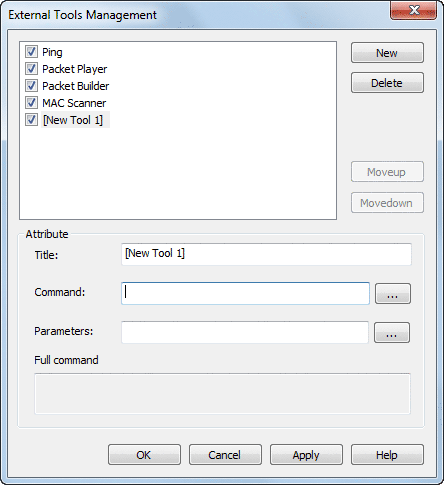
You can click New to attach new tools, Delete to delete your selected Tool in Left pane. And also you can rearrange the listed items order by Move up and Move Down.
To demonstrate, you can follow the steps below to attach the Tracert command of Windows into Colasoft Capsa.
1. Click the New... button, the Attribute pane appears.
2. Enter Tracert in Title textbox as its name.
3. Enter the path of the program in Command: C:\WINDOWS\system32\tracert.exe, or click  to choose the path.
4. Click after Parameters textbox. The External Tools Parameter dialog
box appears.
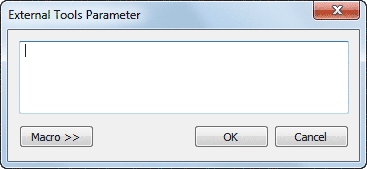
5. Click the Macro >> button to view the details.
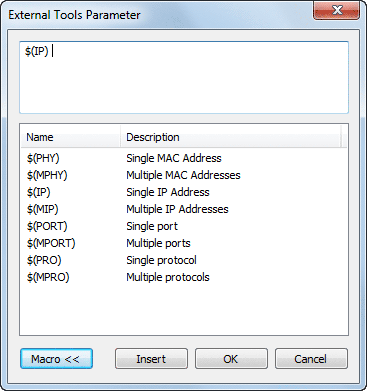
Colasoft Capsa lists the parameters IP Address, Physical Address, Port and Protocol in the window. You can add a parameter by selecting it's name and clicking the Insert button. If the parameters are not listed, you can enter the parameters into the upper window manually, like as -d, -h, -j and -w in Tracert command. Every parameter should be separated with a blank space.
6. Choose the IP Address and click Insert and then click OK to save the settings and back to the External Tools Management dialog
box.
Now you can find Tracert icon in Tools tab of the Ribbon. Click it to open tracert command.
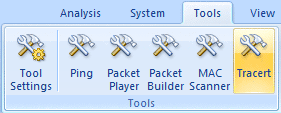
In addition, you can execute to trace an IP with Colasoft Capsa conveniently. Select a packet in the Packet tab and right click, choose the Tracert command. The source and destination IP address of the selected packet will be listed out, you can trace either one by its name or both by the All command.
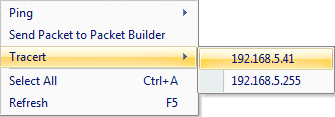
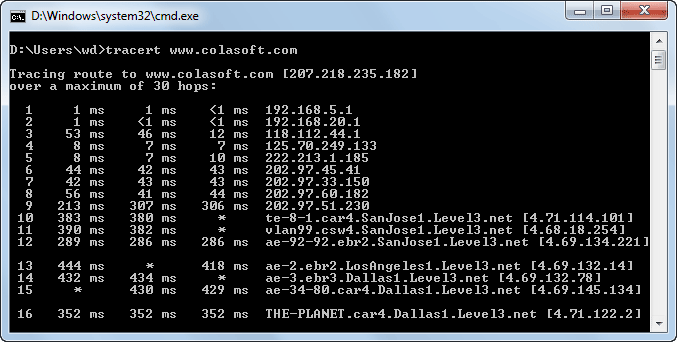
Now let's trace 207.46.26.109 by click its name. System will trace this IP address and display the details of the execution in the popup window.
|
Back |
| Copyright © 2001 - 2011 Colasoft. All rights reserved. |