|
This page provides some general project options. 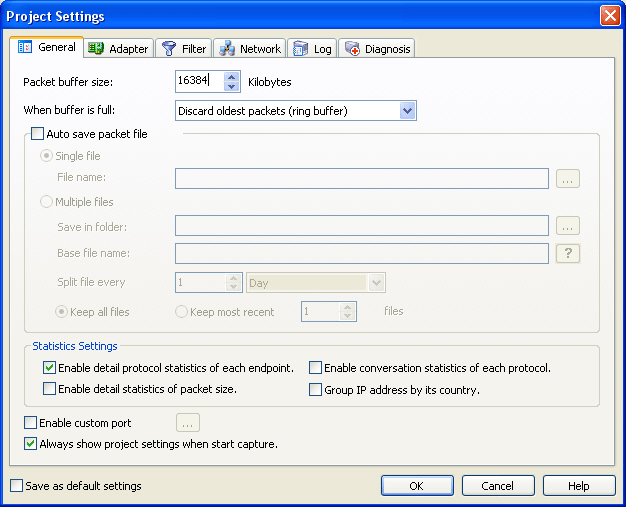
- Packet buffer size
By default the packet buffer size is 16384 KB. You may change the value, but you must take the size of your system memory into account, because captured data is stored in the packet buffer and, when you save a project, the data contained in it will be saved to your hard disk.
The size you set will also affect the packet list view. The bigger size you set, the more packets you can see in the packet list view.
- When buffer is full
When the number of captured packets reaches the packet buffer size you have specified, Colasoft Capsa will do one of the following:
-
Discard oldest packets (ring buffer)
It is recommended to discard the oldest packets when the packet buffer is full, Colasoft Capsa will store new packets and keep the packet buffer up to date.
-
Discard new packets
All new captured packets will be discarded after being analyzed and will not be saved to the packet buffer.
-
Discard all old packets
Colasoft Capsa will empty the packet buffer and then append new packets to it.
-
Stop capture
Colasoft Capsa will stop capturing new packets.
Note: Don't choose this option if you would not like to cease capture.
- Auto save packet file
If checked, Colasoft Capsa will automatically save packets to a single file or split files as you define.
-
Single file
All packets are saved to a same file.
- File name
Specifies a name for the packet file. Click the
 button on the right to open a dialog for defining a save path for
the packet file.
button on the right to open a dialog for defining a save path for
the packet file.
-
Multiple files
Packets are saved to the files split by time or size. To reduce the total size, you may choose to only keep the most recent files.
- Save in folder
Specifies a folder name and the save path for all files. Click the
button on the right to open a dialog for defining a save path for
the folder.
- Base file name
The portion of a file name to the left of the period separator.
Colasoft Capsa allows very long file names. Click the
 button to view an example of the base file name.
- Split file every
Chooses a rule for splitting the file if the file size is too big.
You can split files by time or file size - months, days, hours,
minutes, KB, MB.
- Keep all files
Saves all split files in the defined save path.
- Keep most recent
Specifies the number of most recent files for saving.
- Statistics Settings
You can save system resources if uncheck the following statistics options.
- Enable detail protocol statistics of each endpoint.
If check this option (by default), you will not see detailed protocol statistic information of endpoints (except root nodes).
- Enable detail statistics of packet size.
If uncheck this option (by default), you will not see the statistics of Most Common Packet Sizes in the Summary view.
- Enable detail protocol statistics of each conversation
If check this option (by default), you will not see the detailed protocol statistics of
IP and Physical conversations in the Conversations view
(except root nodes).
- Group IP address by its country
If uncheck this option (by default), the captured IP addresses will not be
grouped under countries in the IP Explorer group of the
Project Explorer dock window.
- Enable custom port
Check this option if you want Capsa to monitor non-standard ports, and then click the button to add ports.
- Always show project settings when start capture.
If checked, Colasoft Capsa will always open the Project Settings dialog every time when you start a new capture.
|
|