|
In addition to make simple filters by address, port and protocol, you can also choose packet size, packet value and packet pattern as filter parameters, which are available in the Advanced Filter page. Advanced filters are unique to Colasoft Capsa enterprise edition. To create an advanced filter, click the Filter icon
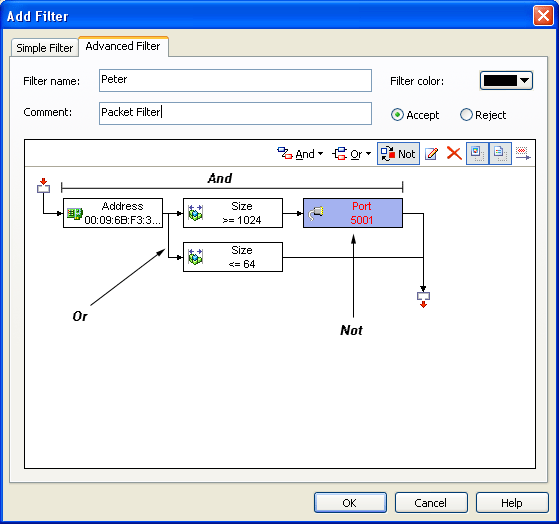
You should specify a rule before adding a new filter item using logical And or logical Or statement; logical Not statement is for you to not accept the current filter item. The table below provides brief descriptions for these rules and other commands available in the Advanced Filter page.
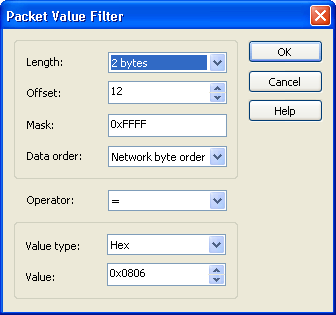
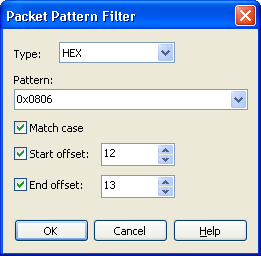
You may define Address filters, Port filters and Protocol filters in either the Simple Filter page or the Advanced Filter page, but Packet Value filters, Packet Size filters and Packet Pattern filters can only be defined in the Advanced Filter page. It is allowed to switch between the Simple Filter page and the Advanced Filter page, however, you are in danger of losing the specified parameters you have already entered as moving from the Advanced Filter to the Simple Filter page, you have an opportunity to abort the operation when a warning appears. Click the rule And or Or and select a filter item to define, the rule Not is disabled unless you choose an existing filter item first. The following are some setting examples.
|
 from the toolbar to open the Project Settings - Filter page. Click the Advanced Filter tab, you can see a screen with some icons and the text And, Or, Not representing the rules for settings advanced filters. The filter name, filter color and comment can be customized, if you check the check box of Set as default, this advanced filter will appear in the filter list each time when you open a new project.