 in the Alarm Notifications Area on the right side of the Status Bar.
Alarm Explorer Window provides real-time popup alert when an alarm rule is triggered. You also find triggered alarm number in the Alarm Notification area on the right side of the Status Bar. You are almost allowed to create alarms from any object in Node Explorer window and in tabs of the Main View. Read Creating and Editing Alarms to learn how to create and edit an alarm.
To open the Alarm Explorer window, follow any of the ways below:
in the Alarm Notifications Area on the right side of the Status Bar.The Alarm Explorer window has the following three parts:
 For different network needs, not one alarm pre-specified by Colasoft Capsa, you need to create alarms on your own.
All the alarms are hierarchical grouped in three categories: Security, Performance and Fault. You will see all enabled alarms in the list. You can double-click an alarm item to open the Network Profile window to manage the clicked alarm (See Network Profile - Alarm to read in detail).
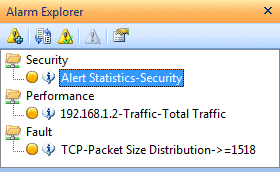
Click an alarm item, the Status Information pane displays the detail information of the alarm.
The Status Information pane displays properties of your selected alarm in detail. Top 10 statistics displays in this pane if you enabled Top 10 statistics of the selected alarm.
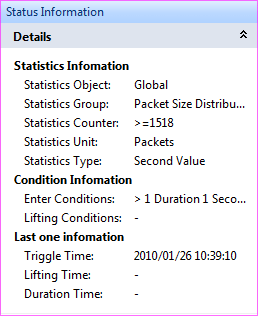
You can click  to collapse an information group.
The toolbar is on the top of the Alarm Explorer window. It is described as follows:
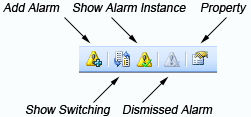
The toolbar contains the following icons:
| Add Alarm | Click to open the Make Alarm dialog to create a new alarm. |
| Show Switching | Click to switch layout between hierarchical and tiled style. |
| Show Alarm Instance | Click to display triggered alarms only. |
| Dismissed Alarm | Click to dismiss an triggered alarm. |
| Property | Click to open the Network Profile to manage the alarms (See Network Profile - Alarm for details). |
 You can open Alarm Settings by double-clicking an alarm.
When the Alarm Explorer window is closed, the Alarm Notification Area is used to display the real-time triggered alarm information. The Alarm Notification Area is described below:

You can click the Alarm Explorer button to open the Alarm Explorer window.
The three bubbles represent three alarm types: Security, Performance and Fault.
The digits following the bubbles show the number of triggered alarms of the alarm types.
An alarm triggered or dismissed, a pop-up fades in to attract your attention and shows you the number of triggered alarms.
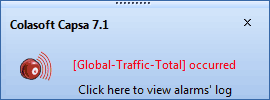
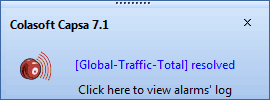
You can click the link: Click here to view alarms' log to view alarm logs (See Alarms to read about saving alarm logs).
Pop-up shows and keeps for only one second then fades away. The corresponding alarm bubble on the right side of the Status Bar starts flashing when an alarm triggered.
|
Back |
| Copyright © 2001 - 2010 Colasoft. All rights reserved. |