HomeProducts > Colasoft Capsa > How to > How to Monitor Network Traffic
Colasoft in Twitter Colasoft in Linkedin Bookmark and Share

How to capture network traffic with Network Monitor

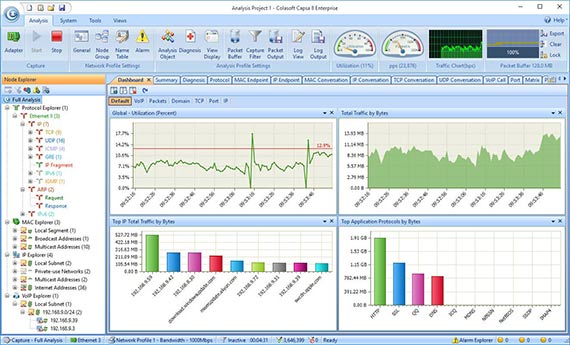
Colasoft Capsa is a powerful yet easy to use TCP/IP network monitor for the Windows-based platforms. With the abilities of real time monitoring all traffic flowing around the local network and to/from the Internet, you can manage and supervise the corporate network more easily and efficiently. The Traffic Analysis Module enables you to capture network traffic in real time, display the data received and sent by every host in LAN in different views. Additionally, Colasoft Capsa has three advanced analysis modules:

  • Email Analysis Module captures email messages and restores its contents including sender, recipient, subject, protocol, etc.;
  • Web Analysis Module allows detailed tracking of Web accesses from the network;
  • Login Analysis Module analyzes all data logins within the network and records all related data.

Monitor network traffic in "Endpoints" tab

In "Endpoints" view, we can monitor network traffic information of each node, both local and remote. With its easy sorting feature we can easily find out which host is generating or has generated the largest traffic.

Monitor Network Traffic in Endpoints

(pic 1. monitor-network-traffic-in-endpoints)

Download Network Analyzer

Monitor network traffic in "Protocols" tab

"Protocols" view will list all protocols applied in network transmission. In "Protocols" view we can monitor network traffic by each protocol. By analyzing network traffic by protocol, we can understand what applications are using the network bandwidth, for example "http" protocol stands for website browsing, "pop3" stands for email, etc.

Monitor Network Traffic by Protocol

(pic 2. monitor-network-traffic-by-protocol)

Download Network Analyzer

Monitor network traffic in "Conversations" tab

In "Conversations" tab we can monitor network traffic by each conversation and the figure out which conversation has generated the largest network traffic.

Monitor Network Traffic by Conversation

(pic 3. monitor-network-traffic-by-conversation)

Download Network Analyzer

Monitor network traffic in "Matrix" tab

"Matrix" is a view that visualizes all network connections and traffic details in one single graph. The weight of the lines between the nodes indicates the traffic volume and the color indicates the status. As we move the cursor on a specific node, network traffic details of the node will be provided.

Monitor Network Traffic In Matrix

(pic 4. monitor-network-traffic-in-Matrix)

Download Network Analyzer

Monitor network traffic in "Graphs" tab

If we want to get a trend chart of the network traffic, then we need to use the "Graphs" tab. "Graphs" view allows us view network statistics dynamically in different chart types, such as ling chart, bar chart, and pie chart. By selecting "Utilization" we get a real-time traffic trend chart.

Monitor Network Traffic in Graphs

(pic 5. monitor-network-traffic-in-graphs)

Download Network Analyzer

As we can see, with Capsa we can not only monitor network traffic in convenience, but also analyze network traffic in deferent levels, thus enables us quickly and efficiently detect network abnormities and troubleshoot network problems. Download Now

Monitor network traffic in "Summary" tab

"Summary" is a view that provides general information of the entire network or the selected node in the "Explorer". In "Summary" we can get a quick view of the total traffic, real-time traffic, broadcast traffic, multicast traffic and so on. When we switch among the node from the explorer, corresponding traffic information will be provided.

Monitor Network Traffic in Summary

(pic 6. monitor-network-traffic-in-summary)

Download Network Analyzer
Copyright © 2001 - 2010 Colasoft. All rights reserved.

Colasoft, Capsa and Colasoft logos are registered trademarks of Colasoft. Sniffer is a registered trademark of Network General Corporation. All other names are trademarks or registered trademarks of their respective owners.