
Colasoft MAC Scanner
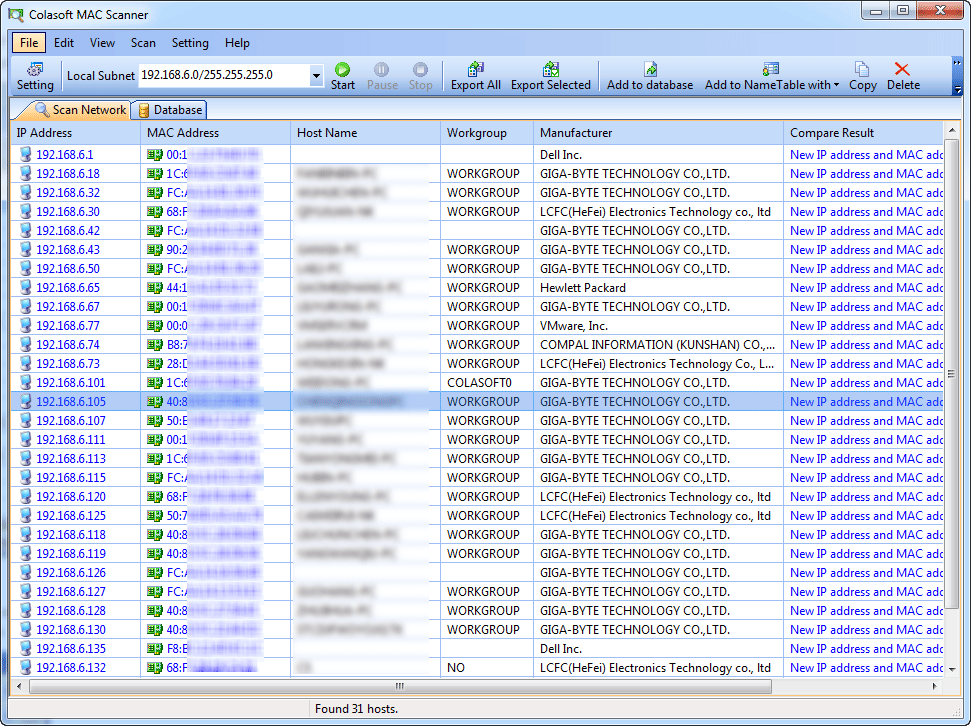
Colasoft MAC Scanner is used for scanning IP address and MAC address. It can automatically detect all subnets according to the IP addresses configured on multiple NICs of a machine and scan the MAC addresses and IP addresses of defined subnets.
Download a free network analyzer to monitor, analyze and troubleshoot your network.
How does it work?
Choose a subnet from the Local Subnet combo box and click the Start button or F5 to execute scan. Colasoft MAC Scanner will display scan results in the list, including IP address, MAC address, Host Name and Manufacture. It will group all IP addresses according to MAC address if a MAC address is configured with multiple IP addresses. The scanned results can be exported into .txt file for future reference.
| File Size: 51.4 MB | Release Date: 08/07/2024 |
| Latest Version: 2.3 | Requirements: Windows 2000/XP/2003/Vista/7/8/10/11 |
Download a free network analyzer to monitor, analyze and troubleshoot your network.