|
|
| What is Colasoft Capsa? | |
| A: | Colasoft Capsa is an expert network analyzer designed for monitoring and diagnosing network traffic flowing through local network, helping network administrators to detect and troubleshoot network problems. With the abilities of real time packet capture, accurate protocol analysis, automatic network events diagnosis, combined powerful filters and statistic information of global network, Colasoft Capsa let you quickly and efficiently fix the network troubles. |
| Top | |
| What can I do with Colasoft Capsa? | |
| A: |
|
| Top | |
| |
What are the differences between Colasoft Capsa Professional and Colasoft Capsa Enterprise? |
| A: | Colasoft Capsa has two editions: professional edition and enterprise edition. The professional edition offers the necessary features of a great network monitoring tool at an inviting price, it can meet IT professionals' basic needs in network traffic monitoring and protocol analysis. The enterprise edition has many more advanced features than the professional edition, such as supports dial-up adapters, loopback packets on local host, statistic graphs and reports,
network traffic matrix, advanced packets filters, simultaneously monitoring multiple adapters, etc. Click here to view the comparison table. |
| Top | |
| |
What is a filter? |
| A: | In Colasoft Capsa, a filter is a rule or set of rules that separates captured data and performs a particular action based upon your instructions. The filters decrease the packets to be analyzed and displayed, enabling you to focus on what you are really interested in. Colasoft Capsa has two kinds of filters: global filters and project filters. Global filters are some commonly used protocols filters, which can be applied to the current project. Project filters are only applied to the current project. |
| Top | |
| |
Can Colasoft Capsa analyze the traffic occupation in the network? |
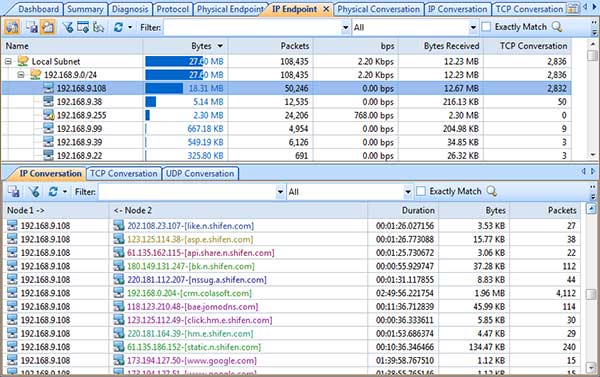
| A: | Colasoft Capsa provides users detailed statistics information of the whole network or a specific subnet, MAC/IP address or protocol, including total traffic, traffic each second, average traffic and etc, and shows these information in the Endpoints view and Protocols view. |
| Top | |
| |
I have a small LAN which connects through a Linksys 24 port switch. I can see the web traffic on the machine that the software is on but cannot view the sites visited by the remainder of the computers on the LAN. |
| A: | Please check your switch first, if it supports "port mirroring", when this feature enabled you will be able to monitor the entire LAN's traffic. If it dose not support "port mirroring", you can install Colasoft Capsa on your Internet gateway (if applicable), or on a workstation which is connected to the same hub with your Internet gateway. For the instructions on how to configure port mirroring, please refer to the document coming with your switch or contact the provider. Click here for a reference list of hardware that support port mirroring, some installation layouts can also be found at Colasoft.com. |
| Top | |
| |
I received a blue screen with CSTDI50.SYS (Colasoft TDI Loopback Driver), the screen said IRQ NOT LESS THAN OR EQUAL. |
| A: | A possible reason is the packet driver was installed improperly. Please run regedit.exe and delete the following keys: HKEY_LOCAL_MACHINE\SYSTEM\CurrentControlSet\Services\CSTDIDRV The keys also can be found in: HKEY_LOCAL_MACHINE\SYSTEM\ControlSet001\Services\CSTDIDRV or HKEY_LOCAL_MACHINE\SYSTEM\ControlSet003\Services\CSTDIDRV Then reinstall Colasoft Capsa. |
| Top | |
| |
Our LAN is connected with a hub, but I can only detect my own traffic. |
| A: | Generally, if a NIC supports promiscuous mode it can work well with Colasoft Capsa, a possible reason is your hub actually acts as a switch though labeled as a hub (e.g. Linksys hubs).
Another possible reason is you are using a multi-speed hub, in which case you can't see the traffic from the stations operating at the speed that is different from your NIC's speed (e.g. if you have a 10 Mbit NIC, you can't see the traffic generated by 100 Mbit NICs). |
| Top | |
| |
I start capture and visit some https websites, but I don't get any log information. |
| A: | The secure hypertext transfer protocol (HTTPS) is a communications protocol designed to transfer encrypted information between computers over the World Wide Web, currently no sniffer tools can reconstruct HTTPS packets to primary plain contents except the packet header; in other words, if you are visiting a https website you can not get the URL from Colasoft Capsa' web log, but associated connections information can be found in the "Connections" view. |
| Top | |
| |
I would like to record just the web sites visited not every gif on the web site, can I do that? |
| A: | Yes, with the flexible filters of Colasoft Capsa you can focus on the packets you are really interested in. Please follow the steps below to set a HTTP filter:
![]() |
| Top | |
| |
Does Colasoft Capsa enable me as a network administrator to easily see who is listening to the radio and downloading music online? |
| A: | Yes. The standard ports for media protocols are: RTSP - port 554 PNM - port 7070 (also known as PNA port) MMS - port 1755 By setting port filters in the "Project Settings - Filter" dialog you can easily find out who is visiting media resources; to monitor the downloads of media files (e.g. .rm), you can set a URL filter for HTTP analysis in the "Project Settings - Advanced Analyzer" dialog. |
| Top | |
| |
After I entered the serial number and license key, they didn't work. |
| A: | Please copy and paste the serial number and licence key you received from us to the fields required, it may include unnecessary blank or input error if you type in the numbers. |
| Top | |
| |
Some of the Host Names are not being displayed properly. Do you have idea why it only gives us IP addresses and not find the computer names? |
| A: | Colasoft Capsa resolves IP addresses in the following sequences:
|
| Top | |
| |
Is there a way to keep an area of the graph on screen so I can save that section of the graph that is important to me? |
| A: | Yes. To show graph history, click the "Pause" button from the toolbar to pause refreshing the view (just the display stops refreshing, the collection for graphic data still continues), then you can scroll to any section of the graph and save it as .bmp, .png and .emf file; when you click "Pause" again, the "Graph" view will resume to show the latest statistic data. |
| Top | |
| |
I am wondering if Colasoft Capsa can calculate the network bandwidth? |
| A: | Yes. The network bandwidth concludes interior bandwidth and exterior bandwidth.
Colasoft Capsa will list all captured IP addresses and show each IP's bandwidth
usage in the Utilization column of the "Summary" view. To view the interior
bandwidth, select the "Local Subnets" of "IP Explorer " group in the "Project
Explorer" dock window. Regard exterior bandwidth, select the "Internet
Addresses" group from the "Project Explorer" dock window. |
| Top | |
| |
We have a 70 Suite offices and 1 T1 sharing, the T1 goes down some times because some customers create Internet traffic with viruses and the usage of the T1 exceeds the 100%, can Colasoft Capsa help us find who is causing these issues? |
| A: | If the 70 suite offices are connected via a middle-exchange-equipment (e.g. center switch) and supports Ethernet environment, Colasoft Capsa can be installed on any workstation which connects to the switch's mirroring port, then you can get all Internet traffic from your network. |
| Top | |
| |
Can I monitor the traffic of my remote business network? |
| A: | Yes. In order to monitor the traffic for your remote business network, you should install Colasoft Capsa on a workstation in your business network, and enable the Remote Desktop Access function of that workstation (Windows2000 Terminal Server, Norton PcAnywhere, VNC Server, etc.), then you can access to Colasoft Capsa via the local Remote Desktop client program. |
| Top | |
| |
I'm on a LAN, when I run Colasoft Capsa and try to choose an adapter, the list does not show any adapters on my network. |
| A: | Colasoft
Capsa dynamically loads the NDIS protocol drivers it supports. However, the Windows NT and Windows 2000 security model does not allow non-administrator users to load and unload device drivers normally. If you meet such problems, use "regedit.exe" to delete the following keys in your registry, then reboot your machine and restart Colasoft
Capsa.
Version 3.0: Version 4.0: |
| Top | |
| |
How can I use Colasoft Capsa to analyze traffic on other switch ports if our network is tied together with a switch? |
| A: | Unlike hubs, switches prevent promiscuous sniffing. In a switched network environment, Colasoft Capsa (or any other packet analyzer) is limited to capturing broadcast and multicast packets and the traffic sent or received by the PC on which Colasoft Capsa is running.
However, most modern switches support "port mirroring", which is a feature that allows you to configure the switch to redirect the traffic that occurs on some or all ports to a designated monitoring port on the switch. By using this feature, you will able to monitor the entire LAN segment. Please refer to the documentation that comes with your switch for information on availability of this feature and configuration instructions. If your switch does not support "port mirroring", you can install Colasoft Capsa on your Internet gateway (if applicable), or on a workstation connected to the same hub as your Internet gateway. In this way, you can monitor all network traffic between your Intranet and the Internet. Various networking hardware manufacturers name the feature "port mirroring" differently. Click here for a reference list of hardware that support port mirroring. |
| Top | |
| |
We use a Windows 2000 server and Exchange. We sent some emails but didn't see any information from Colasoft Capsa. |
| A: | In most cases, Outlook communicates with Exchange server by using the "Exchange message protocol" which is not supported by Colasoft Capsa. However, you can configure Outlook and Exchange server to deliver email messages via SMTP and POP3 protocols. Please refer to the documentation that comes with your Exchange server for information on availability of this feature and configuration instructions. |
| Top | |
| |
Why all the packets I see have a bad checksum? |
| A: | Many GB adapters have the checksum offload parameters enabled by default. When this feature enabled, an adapter performs the cycle-intensive process of calculating CRC, the Windows TCP/IP stack does not calculate the IP and TCP checksums but leaves them as 0x0000. Colasoft Capsa collects the copy of each outgoing packet before it goes to the adapter, that is the reason why the checksum showed as bad. We have reproduced this issue on Intel Pro/1000 cards, but probably it may also occur on other adapters. To fix this issue, you need to disable the adapter's Offload Transmit IP Checksum and Offload Transmit TCP Checksum feature in the advanced setting dialog. |
| Top | |
| |
Can I change adapter when Colasoft Capsa is running? |
| A: | Yes. Colasoft Capsa works on multiple adapters, you can change adapter when it is running, but some project data will be cleared, e.g. statistic values, graph data, TCP connections and the packets in the buffer, analyzers also will be reset. |
| Top | |
| |
When Colasoft Capsa runs it slowly accumulates more RAM until the system runs out of physical memory, I set the packets to purge completely when the buffer is 100%, this helps but does not resolve the issue. Please advise. |
| A: | Colasoft Capsa is designed for real-time network diagnosis, it saves all protocol statistic data for each endpoint, so the more endpoints or traffic in your LAN, the more memory usage required for analysis and diagnosis. The best way to optimize the program's performance is to filter out the packets you don't need to monitor. For example, sending a 50 MB file between two machines on your LAN can generate approximately 40,000 NetBIOS packets with the data transfer rate of 10 MBytes per second, which can be a heavy load for the application. But normally you don't to need to view every NetBIOS packet being sent, so you can configure Colasoft Capsa to capture IP packets only. Colasoft Capsa has a flexible filter system, including Simple Filter and Advanced Filter, you can fine-tune the application to display only the packets that you really need. |
| Top | |
| |
I am using Colasoft Capsa 5.0 and would like to have an upgrade, can I share the packets with the new version? |
| A: | Yes. Colasoft Capsa supports to import packet files from the previous version. You should first export packets to a file in *.cpf or *.cap format, then import it to the new version. |
| Top | |
| |
Why I can not see any information in the Logs view when I send/receive emails via http string? |
| A: | It is transmitted via HTTP protocol when you send/receive emails via web page. Colasoft Capsa cannot display these emails in the Logs view because of the Email Analyzer in Capsa analyzes emails based on SMTP and POP3 protocols. |
| Top | |
| |
I cannot see any original content of an email by double-clicking it in the Email Messages list of Logs view. What can I do? |
| A: | The reason is Colasoft Capsa will not save a copy of the captured emails in default. You should enable the Save Email Content and define a save path in the "Log" page of "Project Settings" dialog before capture. |
| Top | |
| |
Can I locate the machines infected by worms with Colasoft Capsa? |
| A: | Yes. There are two kinds of worm – email worm and OS worm.
Email worm OS worm |
| Top | |
| |
Can I find out the reason of web slowdown with Colasoft Capsa? |
| A: | Yes. The possible reasons cause web slowdown are the router between client and web server, the web server itself, the server script processing. You can find out the real reason with the information of accurate time using in the three periods provided by Colasoft Capsa. |
| Top | |
| |
We configured IP address with DHCP in our network. How can I locate the trouble PC when we get network problem? |
| A: | The MAC addresses of every PC are fixed though the IP addresses change frequently. You can get the details of all IP addresses, MAC addresses and hosts and their intrinsic relations in your network by scanning with Colasoft MAC Address Scanner. Then run Colasoft Capsa when the trouble occurred, you will conveniently locate the trouble PC and relative person with the scanner results and the captured packets. |
| Top | |
| |
We need to add Port 10081 at the end of URL address when access our firewall via Web Interface. Why I can not find any information in the Logs view of Colasoft Capsa? |
| A: | Colasoft Capsa analyzes the http browse based on the Port 80 in default. If you want to analyze http browse via other ports, such as Port 10081, please check the box before "Enable custom port" and click the button on the right in the "General" page of "Project Settings" dialog. Then you will see a "Custom Port" dialog window, which you can change the parameters of http to port 10081. |
| Top | |
| |
We got IP conflicts in our network recently. Does Colasoft Capsa can help me? |
| A: | Colasoft Capsa will reveal the detailed diagnoses information automatically, including MAC address conflict, if there is an IP address conflict in your network. With the MAC address conflict, you can find out the PC caused the conflict and resolve the conflict. |
| Top | |
| |
Can I detect the BT download in our network with Colasoft Capsa? |
| A: | Yes, Colasoft Capsa supports BT protocol. If there is a BT download in your network, you can get the BT download information, including the resource and destination PC, accurate time, and etc. In the Matrix view, you will see the PC execution BT download connected with huge internet addresses and its divergent matrix datagram. |
| Top | |
| |
I need report files of the analysis, can Colasoft Capsa generate reports? |
| A: | The "Reports" view of Colasoft Capsa can automatically generate reports of global network or a specific group, such as a subnet, a host or a protocol and save the reports in html format. You can even customize the statistic information and enhanced charts of the reports. |
| Top | |
| |
There are HTTP Slow Response, FTP Slow Response, SMTP Slow Response and POP3 Slow Response in the diagnoses events when I run Colasoft Capsa. What's wrong and does it severe? |
| A: | The Application Slow Response indicates your network speed is slow down but not severe. Colasoft Capsa identifies diagnosis events by the default value in the diagnosis module. You can custom the value by click the "Diagnosis" button in the toolbar, select the item and change its value (in ms). |
| Top | |
| |
What the means of "Other" belongs to TCP or UDP protocol in the Protocols view? |
| A: | The Other protocol belongs to TCP/UDP protocol suite in the "Protocols" view means Colasoft Capsa can not identify this protocol currently. |
| Top | |
| |
Can I find out the resource with Colasoft Capsa if our server was attacked? |
| A: | Colasoft Capsa captures and records all packets visited your server, including the attack packets. You can identify the real source of the attack packets by the captured packets. |
| Top | |
| |
Our LAN is connected with a switch, but I can only detect my own web traffic. Why? |
| A: | The web browse is a TCP communication which is neither broadcast nor multicast. You can only detect your own web traffic if the installation of Colasoft Capsa is incorrect. Colasoft Capsa works as bypass based on the Ethernet sniffer technology. If you are in a managed switch network, Colasoft Capsa should be installed on the PC connected to the mirror port of the switch. In an unmanaged switch network, on the contrary, you can only see your own web traffic because Colasoft Capsa can only capture local traffic and broadcasts in LAN. For more information of installation, please see Installation Layout. |
| Top | |
| |
There are multiple IP addresses in a single NIC when I view the captured packets. Does it normal and why? |
| A: | In general, there are several possibilities NIC configured
multiple IP addresses:
It is normal bind multiple IP addresses into one single NIC in the first and second conditions. But the third indicates the host is an ARP attacker. |
| Top | |
| |
There are various departments in our company and each of them belongs to a different VLAN. Can Colasoft Capsa analyze traffic of each department and how? |
| A: | Colasoft Capsa can capture and analyze packets over VLAN. You can set an address filter by IP range if you want to view the traffic of a specific department. Then you only will see the packets of the defined department in Colasoft Capsa. |
| Top | |
| |
I double clicked a protocol in the Protocols view but can not see the corresponding packets in the popup window. |
| A: | It is because of the total size of captured packets is bigger than your buffer size. When your project buffer is full, Colasoft Capsa will discard some older packets to keep the displayed packets up-to-date in default. The packets corresponding to the selected protocol was already discarded by the buffer when you click it, so you can see nothing in the popup window. |
| Top | |
| |
How can I get clear view of some nodes when there are too many nodes in the Matrix view? |
| A: | Though the "Matrix" view will display all captured information in default, you can get the information you focus on by set the "Display Options" of the "Matrix" view in Colasoft Capsa. You can view the maximum 100 nodes and maximum 100 conversations and even custom your own display options. In addition, you can choose the matrix type – Physical and IP, and traffic type – unicast, multicast and broadcast. |
| Top | |
| |
When I imported packet capture, the time displayed in "Graphs" view does not match the one in "Packets" view. Why? |
| A: | Colasoft Capsa will display the absolute time (the original capture time) in the "Diagnosis" view, "Conversations view, "Packets" view and "Logs" view if import a packet file. While the system will reanalyze the imported packets first and then display the analysis results in the "Summary" view and the "Graphs" view. So, the time displayed in these view are not the same. |
| Top | |